
You want to hand Claude Code a job on the way out of the door, then check it from the train. There are three ways to do that, and they differ in one thing that matters: where the work runs. This post puts them side by side, then walks through each one.
The short version
| Remote Control | Cloud session | Crewly agent in Slack | |
|---|---|---|---|
| Where the work runs | Your own computer | Anthropic's cloud VM | Your own machines |
| Your phone is | A window into the local session | A client for a cloud session | A Slack app |
| Needs your computer on | Yes | No | Yes |
| Needs | Pro, Max, Team or Enterprise login | Pro, Max, Team or Enterprise; code on GitHub (or uploaded) | Crewly running, agent bots added to Slack |
| Local files and tools | All of them | Only what the repository and environment hold | All of them |
| Good for | One session you started at your desk | A task that ends as a pull request | A standing team you message by name |
The Claude Code rows were read in Anthropic's documentation on 9 October 2026 (links at the end).
Way 1: Remote Control, to steer a session on your computer
Remote Control connects claude.ai/code or the Claude app for iOS and Android to a Claude Code session running on your machine. Claude keeps running locally the whole time, so your filesystem, MCP servers and project configuration stay available.
- Sign in with a claude.ai account. It works on Pro, Max, Team and Enterprise plans. API keys are not supported, and on Team and Enterprise an Owner must enable the Remote Control toggle first.
- Start it. In a project directory, run
claude remote-controlfor a server that waits for connections, orclaude --remote-controlfor a normal interactive session. From a session that is already running, type/remote-control(or/rc). - Open it on your phone. The terminal shows a session URL, and a QR code you can open in the Claude app. No app yet?
/mobileshows a QR code for the store. - Send messages from either side. The conversation stays in sync across terminal, browser and phone, and you can attach a photo or a file from the phone.
What to know before you rely on it: the web and mobile views are a window into the local session, so the computer has to stay on and the claude process has to keep running. If the laptop sleeps or the network drops, it reconnects when the machine is back. The session makes outbound HTTPS requests only and opens no inbound port on your machine.
Way 2: a cloud session, when your computer can be off
A cloud session is a Claude Code session on Anthropic's infrastructure. It keeps running after you close your laptop, and you check on it or steer it from any device.
- Connect GitHub (the Claude GitHub App in the browser onboarding, or
/web-setupfrom your terminal). - Start the task from the Code tab in the Claude app, from claude.ai/code, or from your terminal with
claude --cloud "your task". - Check on it in the Claude app or at claude.ai/code. You can review the diff and open a pull request from there.
The trade-off is the environment: the session sees what the repository and its cloud environment give it, not the rest of your computer. Cloud sessions share your plan's usage limits, and one that sits idle can expire, after which you reopen it to get a fresh VM with the conversation restored.
Way 3: a Crewly agent you message in Slack
Crewly runs a team of Claude Code and Codex agents on your own machines. Each agent can have its own Slack bot, so starting a job from your phone is writing a message.
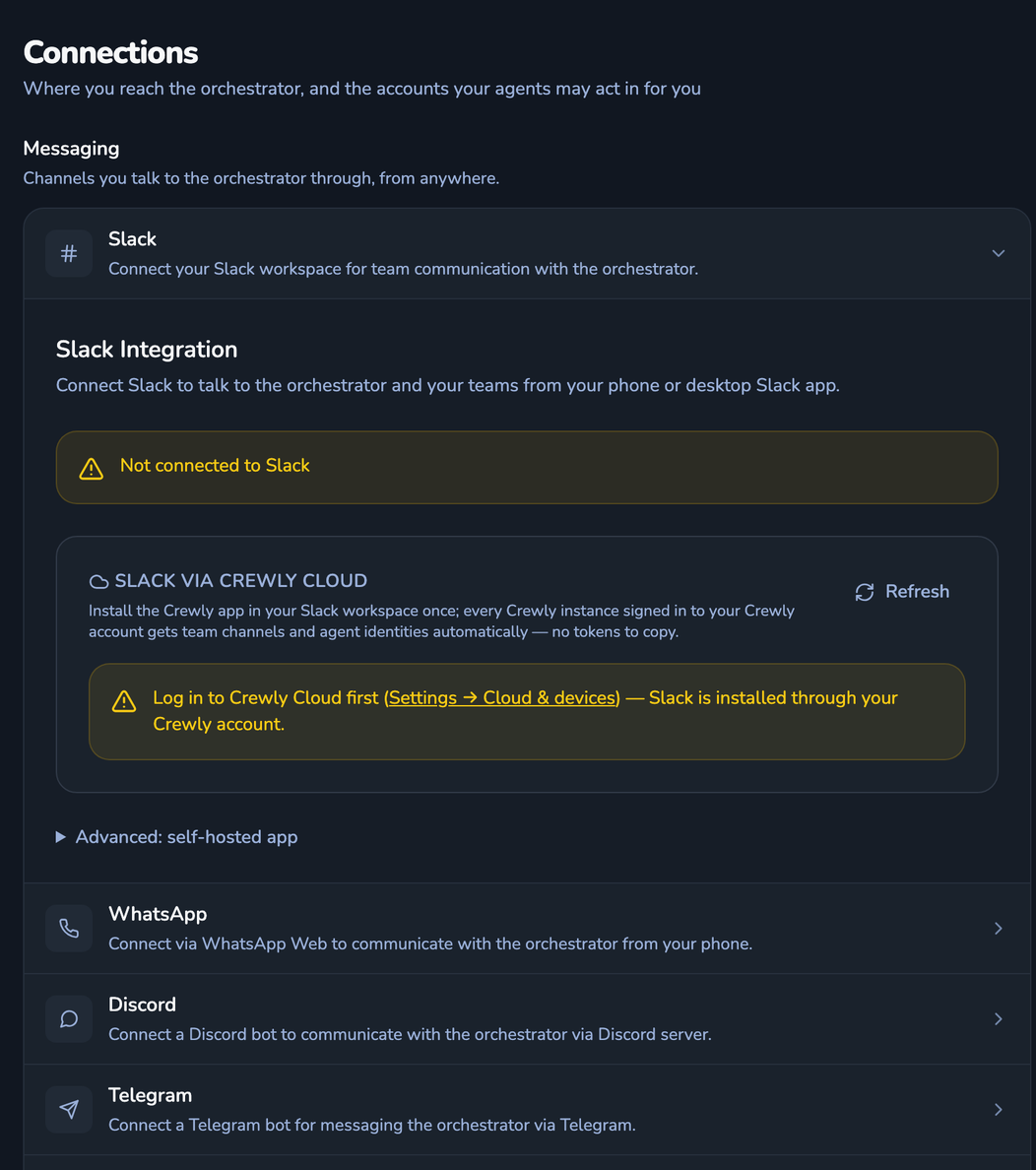 Crewly's Connections page, Slack section, before Slack is connected: the Slack via Crewly Cloud install step and the other messaging options below it
Where you connect Slack in Crewly (screenshot, demo data, not yet connected).
- Start the job. In Slack,
@the agent in its team channel, or DM its bot. Post in the team channel with no@and the team lead answers. - Wait for the signals. An agent that was idle can take a minute or two to wake. You see 👀 from each agent that received the message, then "is working on it…" in the thread.
- Check it. The reply comes as a new message in the thread, so Slack notifies you. To check on a long job, ask the agent in the same thread. Notifications meant for you go to your DM, not to a team channel.
- Deal with what is waiting. Tickets that need your review show up in a Waiting on you list in Crewly Cloud, where you can accept one or send it back. If a runtime gets signed out overnight, you get a Slack DM; reply
loginand Crewly starts the sign-in.
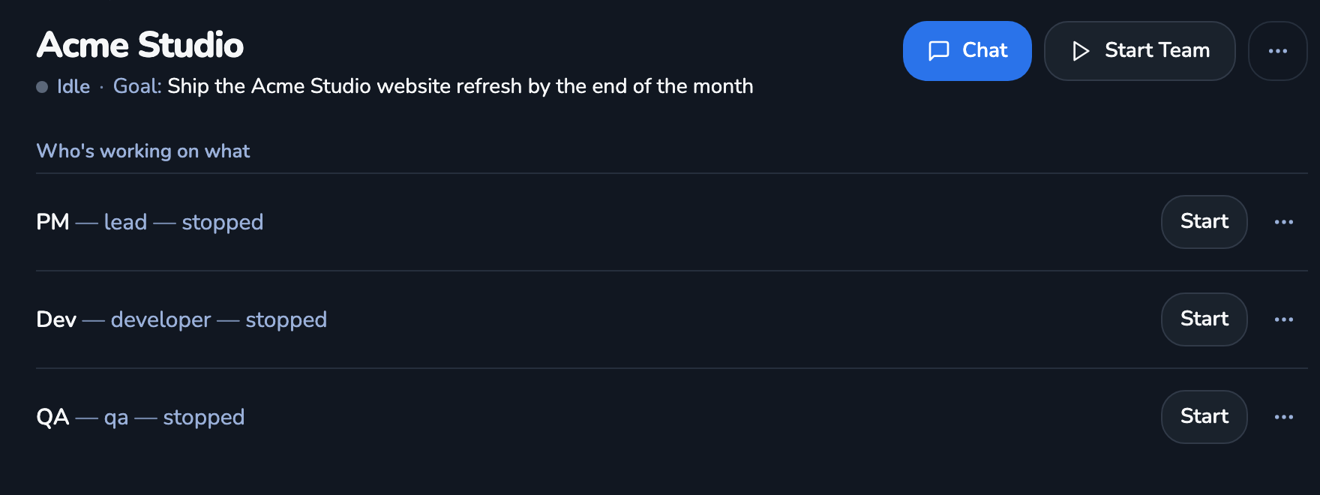 The Acme Studio team page in Crewly: three agents named PM, Dev and QA, each with a Start button
Agents have names you message them by; this demo team has PM, Dev and QA (screenshot, demo data).
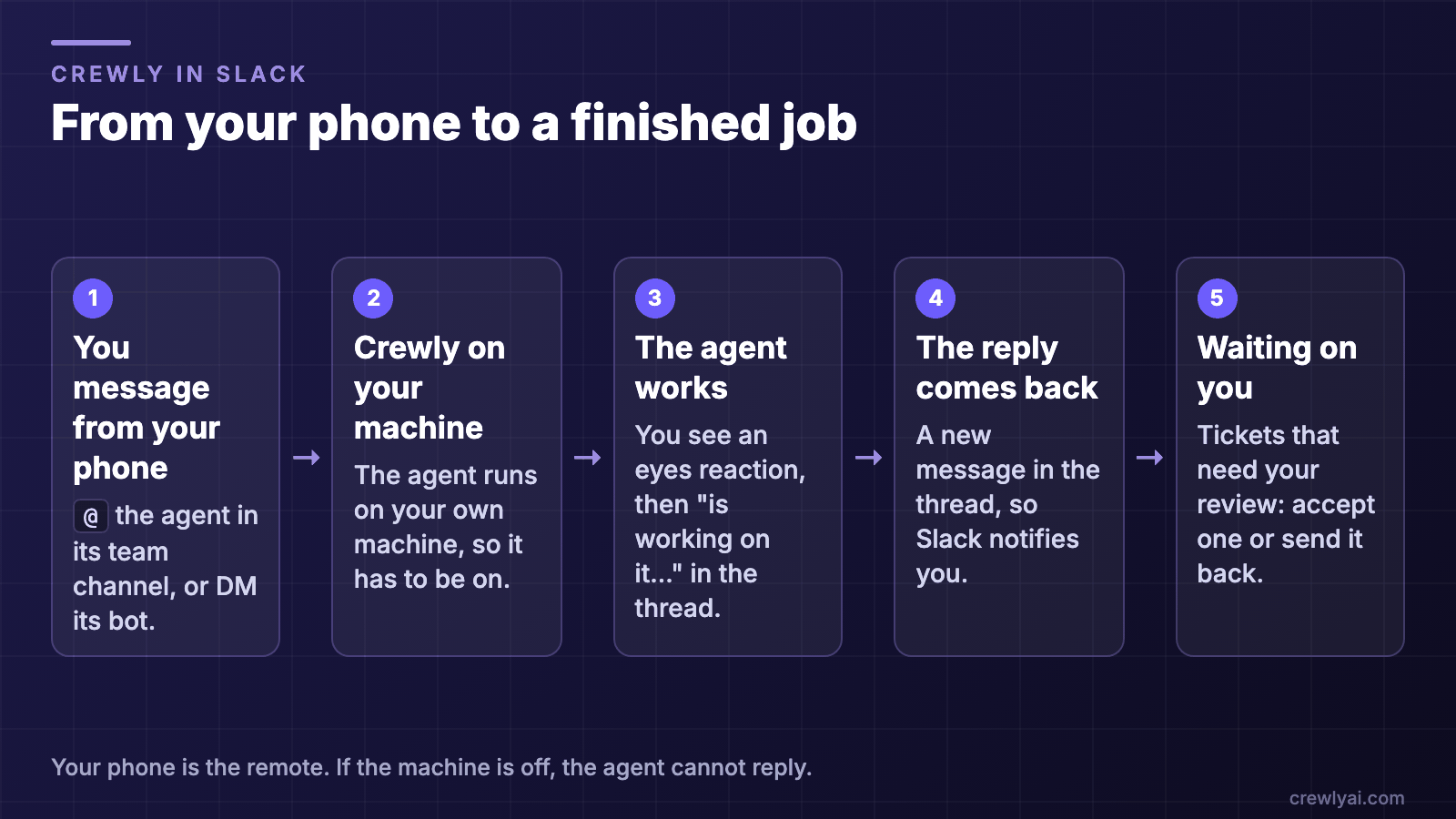 Five steps from phone to finished job: you message the agent from your phone; Crewly on your machine; the agent works, showing an eyes reaction and then is working on it in the thread; the reply comes back in the thread; tickets that need review wait on you
From your phone to a finished job (diagram).
All of this controls a machine that is running Crewly: your phone is the remote. If that machine is off, the agent cannot reply. The Slack setup, one bot per agent and what stays out of channels are in Claude Code Slack bot for every agent, and the phone features are described in Crewly in September.
Which one to pick
- You started a session at your desk and want to keep steering it from the sofa: Remote Control.
- The task is a change to a GitHub repository and your computer will be off: a cloud session.
- You work with several agents that have roles and local tools, and you want to message them by name: Crewly in Slack.
They are not exclusive. A Crewly agent is a Claude Code session on your machine, and you can still use Remote Control or cloud sessions for one-off jobs.
Before you leave the desk
- Keep the machine awake and online if the job runs on it. This is the most common reason a phone message gets no answer.
- Write a message that can finish alone: the task in one sentence, what not to touch, where the result goes, and what to do if stuck. The overnight post covers this and the permission settings.
- Decide what the agent may do without you. An approval prompt on a phone is easy to miss. Pre-allow the commands the job needs, so it does not stop to ask.
- Send a small first job and check it from the phone before you trust a long one.
What this does not do
- Your phone does not run anything in Ways 1 and 3. If the computer is off, nothing happens.
- A cloud session is not your computer. It does not see your local files or tools.
- Nothing here checks the work for you. Read what comes back before you act on it.
To try Crewly, install Node.js 22 or newer first (the installer from nodejs.org, or Homebrew / your package manager), then run:
curl -fsSL https://crewlyai.com/install.sh | bash
Open a new terminal and run:
crewly start
Prefer npm? npm install -g crewly works if your Node comes from Homebrew or the nodejs.org installer.
FAQ
Can I control Claude Code from my phone?
Yes, in two built-in ways. Remote Control lets the Claude app on iOS or Android (or claude.ai/code) steer a session that keeps running on your own computer. A cloud session runs on Anthropic's infrastructure and you start and check it from the Code tab in the Claude app.
Does my computer have to stay on for Remote Control?
Yes. The phone is a window into the session on your machine, so the computer has to stay on and the claude process has to keep running. If the laptop sleeps or the network drops, Claude Code reconnects when the machine comes back.
Which plans does Remote Control need?
Pro, Max, Team or Enterprise. API keys are not supported, and on Team and Enterprise an Owner has to enable Remote Control in the Claude Code admin settings first.
How do I start a Claude Code task from Slack with Crewly?
Add the agent's bot to Slack, then @ the agent in its channel or DM it. The agent runs on your machine, so the machine must be running Crewly. Replies come back in the thread.
Can I run a job on my phone while my laptop is off?
Only with a cloud session, which runs on Anthropic's infrastructure and needs a GitHub repository (or an uploaded bundle). Remote Control and Crewly both run on your own machine, so it has to be on.
Sources
Claude Code facts: Continue local sessions from any device with Remote Control and Use Claude Code in the cloud, read on 9 October 2026. Crewly facts: the posts Claude Code Slack bot for every agent and Crewly in September, both accepted and live; no new interface claims.