
A nightly report or a Monday morning check is the first thing most people want an agent to do without them. Two things decide whether it works: the schedule, and what happens when the agent hits a question nobody is awake to answer. This post covers both.
Before you start
- Crewly installed and running, with the agent you want to use already started. If you do not have it yet:
To try Crewly, install Node.js 22 or newer first (the installer from nodejs.org, or Homebrew / your package manager), then run:
curl -fsSL https://crewlyai.com/install.sh | bash
Open a new terminal and run:
crewly start
Prefer npm? npm install -g crewly works if your Node comes from Homebrew or the nodejs.org installer.
- A machine that will not sleep overnight. Crewly and the agent have to be running when the job fires.
Step 1: Create the schedule
Schedules live in the dashboard, under TOOLS in the left sidebar.
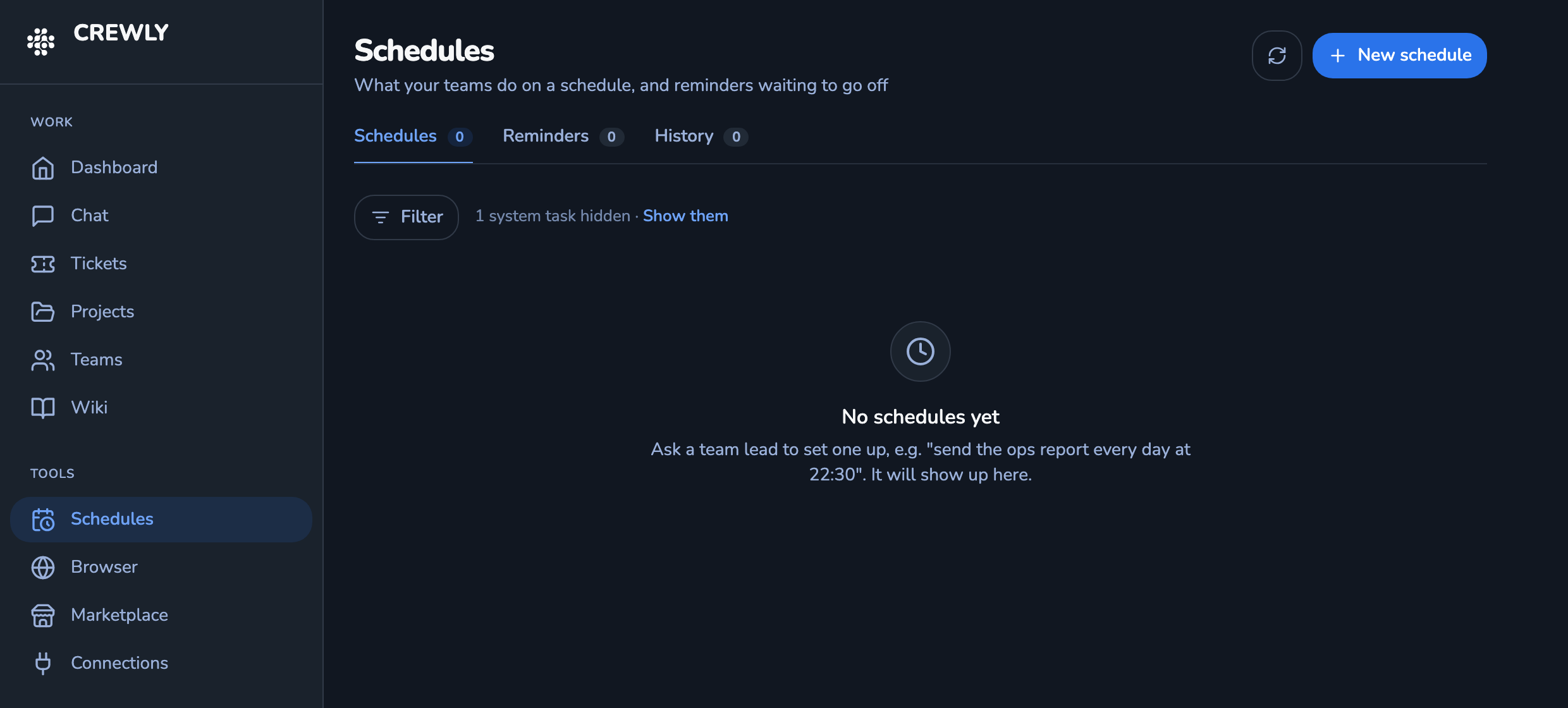 The Schedules page in the Crewly dashboard, opened from TOOLS in the left sidebar, with a New schedule button at the top right and an empty list
- Open the dashboard and click Schedules.
- Click New schedule (top right).
- Type: keep On a schedule. The other option is On an event.
- Name: something you will recognise later, such as "Nightly report".
- Cron expression: five fields, minute hour day month weekday, in your local timezone.
0 2 * * *is every day at 02:00. The form starts with0 9 * * 1-5, weekdays at 09:00. - Send to: the session name of the agent that should do the work. It is a free-text field with no picker, so copy the name from the Teams page.
- Message: the full instruction the agent receives when the job fires. Write it as if the agent had never seen the project today: what to do, where, and what to produce.
- Max runs (optional): 1 for a one-night job. Empty means it repeats until you stop it.
- Click Create. The job appears under its team on the Schedules tab, with a line such as "Every day 02:00 ET · next in 9 h".
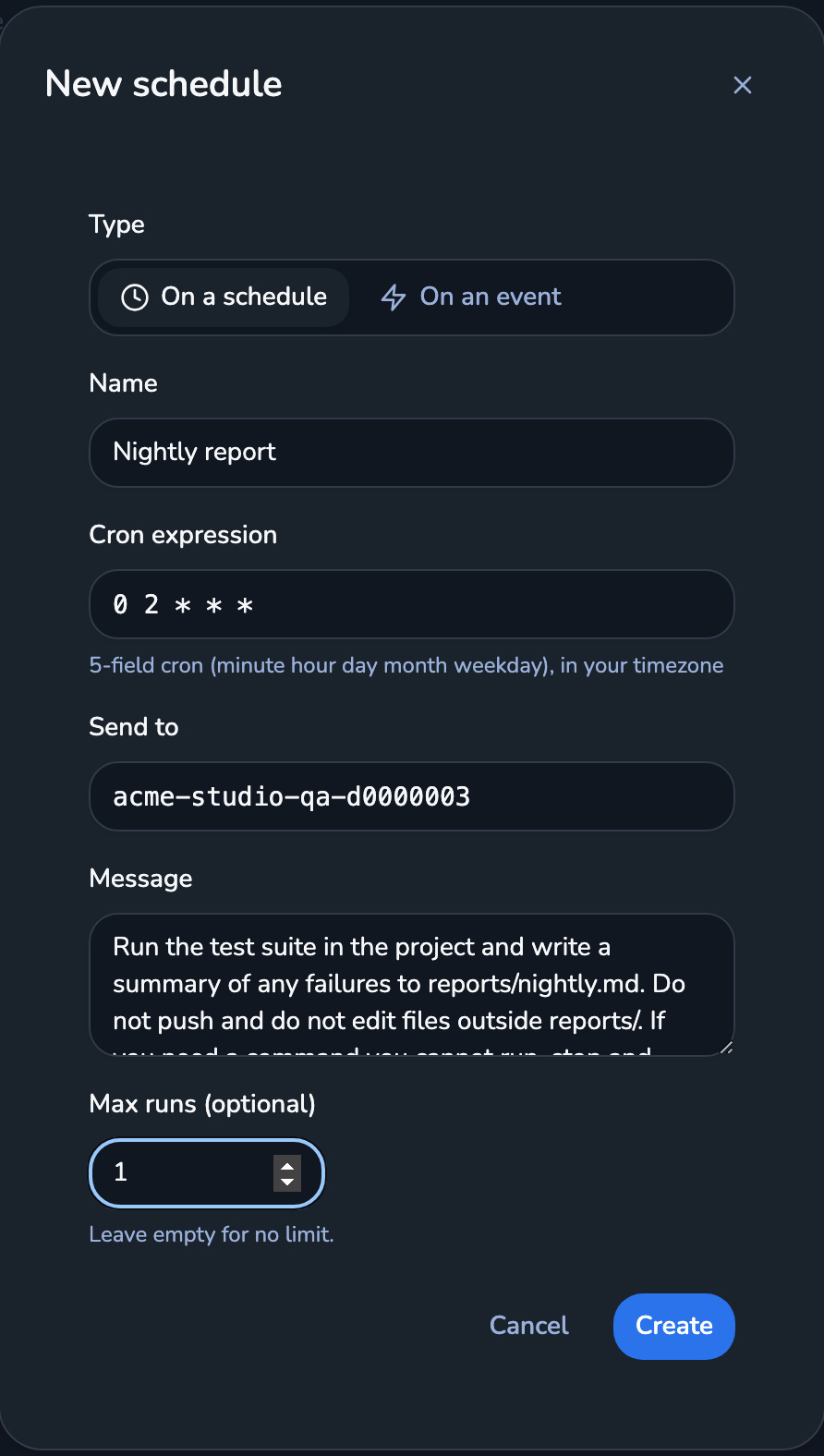 The New schedule form filled in: type On a schedule, name Nightly report, cron 0 2 * * *, an agent session name, a message, and Max runs set to 1
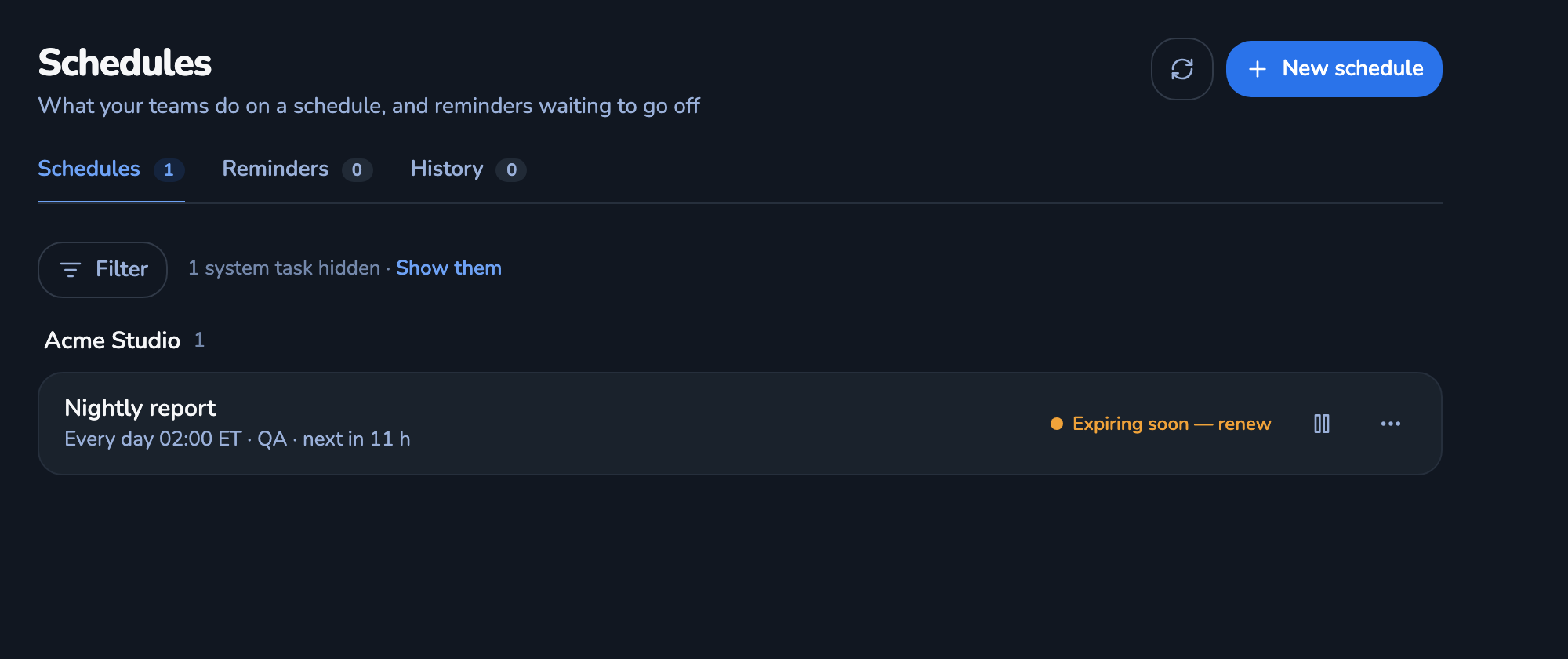 The Schedules list after Create: the Nightly report job under its team, showing Every day 02:00 ET and its next run
To stop it, use the pause icon on the row, or the menu and Cancel schedule. Finished jobs move to the History tab. You can also ask a team lead in chat to set one up for you.
What we have checked: we created a job this way with Max runs set to 1; it fired at the scheduled minute, was recorded as one run, and finished with a successful result. What we have not claimed: that the agent finished the task. The schedule's job is to fire and send the message to the agent; whether the work is good is what your morning check is for.
Rough edges you will notice: a schedule is cron only (there is no one-off date and time), the agent field is a raw session name, and a job with a run cap shows "Expiring soon — renew" straight away, which is harmless. For what else the Schedules page does, see Crewly in September.
Step 2: Decide what the agent may do without you
This is the step people skip. Per Claude Code's permissions documentation, in Manual mode shell commands and file edits ask for approval, and reads inside your working directory do not. At 2 a.m. there is nobody to approve, so a job that needs a command you have not allowed can sit and wait.
You have three ways to handle it, from safest to loosest:
- Allow exactly what the job needs. Add allow rules for the specific commands, such as
Bash(git diff *), in a settings file or through/permissions. Rules are checked deny first, then ask, then allow, so you can allow a family of commands and still deny a dangerous one. - Use
dontAskmode. It auto-denies every call that would otherwise prompt. Reads and the tools you pre-approved still run. The job cannot get stuck on a prompt; it just cannot do anything you did not allow. SetdefaultModein your settings to change the mode a session starts in. - Avoid
bypassPermissionsunless the agent runs in a container or VM. It skips permission prompts, and the documentation says to use it only in isolated environments where Claude Code cannot cause damage.
Also use deny rules for what must never happen overnight, for example Read(./.env) for secrets. A bare tool name in a deny rule removes the tool from the agent entirely.
If you are running Claude Code on its own rather than through Crewly, the same ideas apply to a non-interactive run: claude -p "..." --allowedTools "Read,Edit" pre-approves the tools you list, and --permission-prompts none (Claude Code 2.1.259 or later) denies anything that would prompt instead of waiting.
Step 3: Write a message that can finish alone
A good overnight message has four parts:
- The task, in one sentence. "Run the test suite and summarise failures."
- The boundaries. "Do not push, do not edit files outside
reports/." - Where the result goes. A file path, a ticket, or a Slack message.
- What to do when stuck. "If you need a command you cannot run, stop and write down which one." This turns a silent stall into something you can read at breakfast.
Step 4: Check it in the morning
Open Schedules, then History, and confirm the run fired. Then open the output the message told the agent to produce. If it is not there, the first things to look at are whether the machine slept and whether the agent was waiting on a permission.
Start with Max runs set to 1 for the first night. When that works, clear the field.
Sources
Crewly steps and labels: checked in the dashboard on 9 October 2026 (version 1.20.279). Claude Code facts: Configure permissions and Run Claude Code programmatically, read on 9 October 2026.