
Crewly is an open source computer use agent platform: its AI agents can operate your Mac's real mouse and keyboard to work in native apps and system dialogs. While one works, a banner on your screen says which agent it is and what it's doing. Touching the mouse pauses it, one hotkey stops it, and you can watch and take over the screen from the Crewly Cloud portal or your phone.
Crewly is an open-source platform for running a team of AI coding and ops agents (Claude Code and Codex) that work together in Slack, drive your browser and desktop, and let you watch and take over whenever you want. Computer use is the last of those surfaces, and the one where being able to take over matters most.
What is computer use in Crewly?
Computer use means an agent looks at your screen and acts on it with the mouse and keyboard, the way you would. Crewly agents use it for things that have no better route: native macOS apps, system dialogs, anything a connector or the browser can't reach.
It is deliberately the last resort. Crewly agents are guided to pick the lowest surface that can do the job:
| Need | What the agent uses |
|---|---|
| Mail, Drive, Calendar, Slack, git, files | A Crewly skill or connector, with no screen at all |
| A web page, signed in as you | Crewly in Chrome, in your real Chrome |
| Native apps, system dialogs, anything else | Computer use |
Where it can, the agent reads the screen as named elements ("the Save button") rather than guessing pixel coordinates. That breaks less often when a window moves or the theme changes. Text in canvases and PDFs is read with on-device OCR.
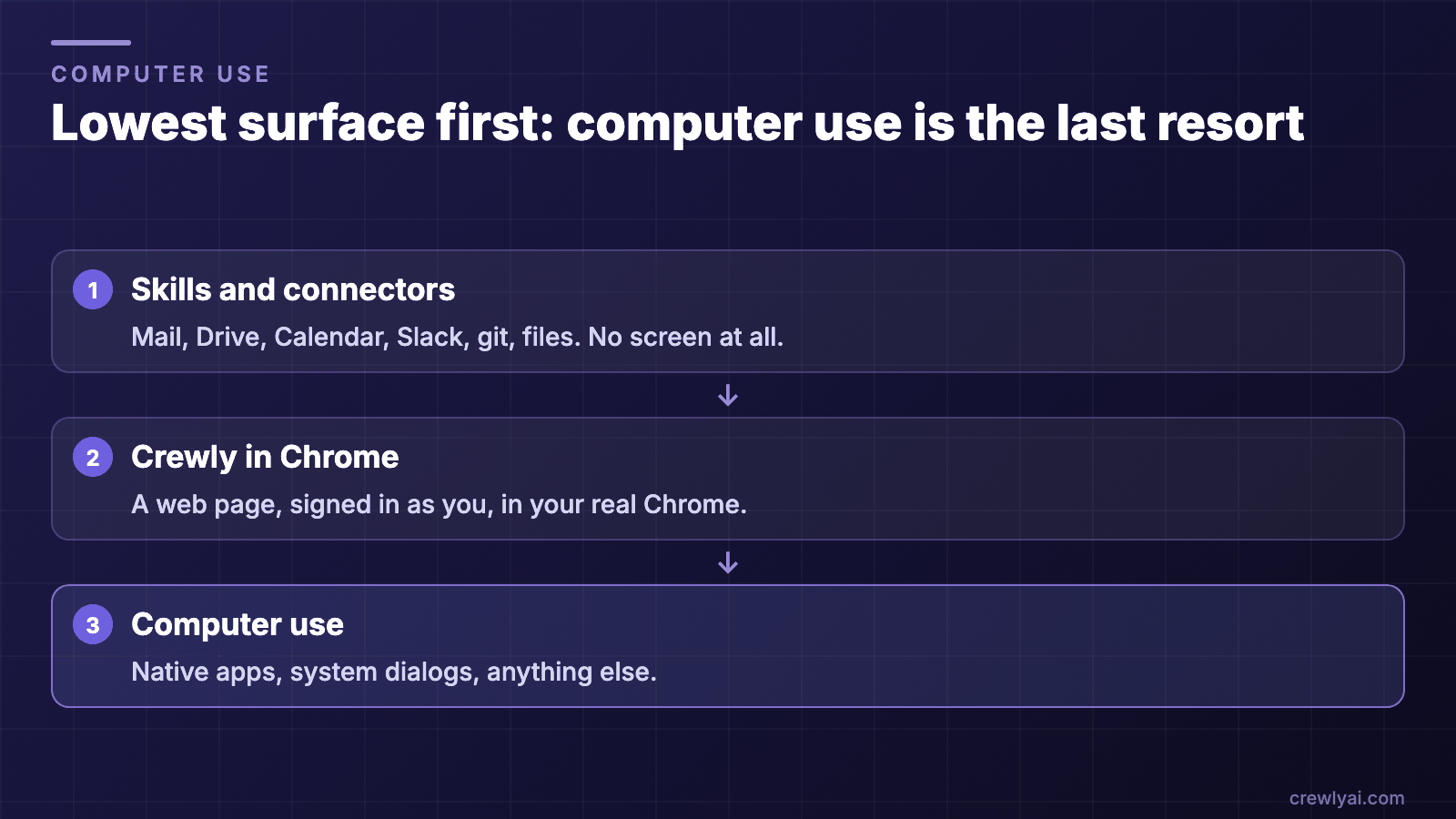 Diagram of the three surfaces, lowest first: skills and connectors with no screen, Crewly in Chrome for signed-in web pages, and computer use for native apps and system dialogs.
Lowest surface first: computer use is the last resort (diagram).
How do I know when an agent is using my computer?
A pointer that starts moving by itself is unsettling, so Crewly doesn't let that happen silently. When an agent acts on the desktop:
- A banner appears on your screen naming the agent and its goal, with Pause and Stop buttons.
- The banner only appears for actions that move something. It doesn't pop up every time an agent just looks, because a banner you learn to ignore is worse than none.
- If an agent crashes, its banner goes away on its own shortly afterwards, rather than claiming work that isn't happening.
How do I take over from a computer use agent?
You have four ways, from gentlest to firmest.
- Just use your mouse or keyboard. Real input from you pauses the agent immediately. Someone reaching for the mouse isn't asking politely. The task isn't cancelled; it waits.
- Click Pause on the banner, and Resume when you're done.
- Click Stop on the banner, or press ⌃⌥⌘. (Control-Option-Command-period) from anywhere, even while an agent holds the keyboard. Stop refuses every desktop action until you clear it.
- Stop agents from your phone. The Desktop page in the Crewly Cloud portal has a Stop agents button that works from anywhere.
Pause and Stop are different on purpose. Pause means "I'm using my machine": the agent is told the task is waiting, not dead. Stop means nothing moves until you say so.
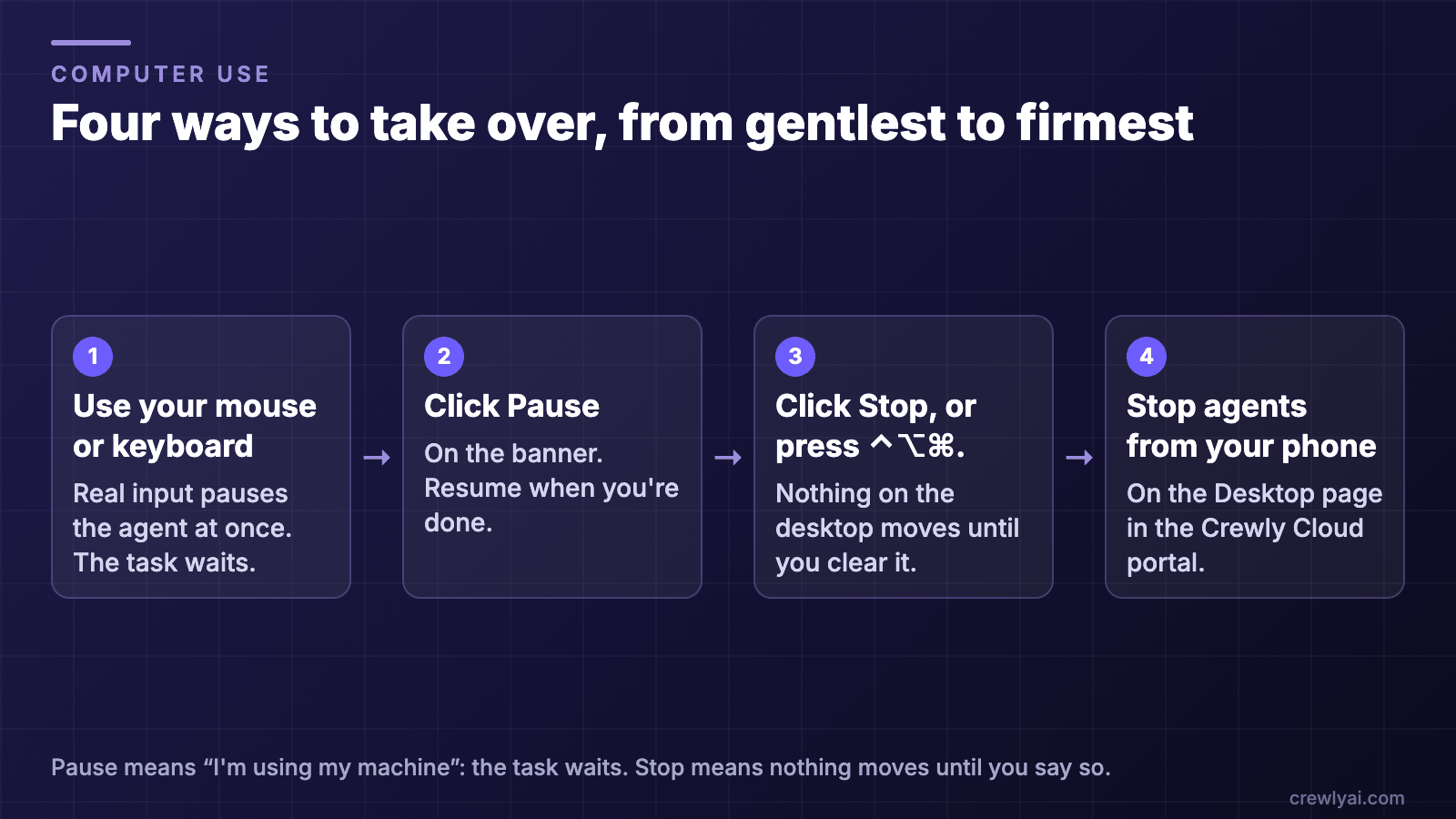 Diagram of the four ways to take over, from gentlest to firmest: use your mouse or keyboard, click Pause, click Stop or press Control-Option-Command-period, and Stop agents from your phone.
Four ways to take over, from gentlest to firmest (diagram).
Can I watch and control my Mac from my phone?
Yes. The Desktop page in the Crewly Cloud portal shows a live picture of the machine's screen, on a laptop or a phone, and lets you drive it.
First, turn on remote desktop at the machine itself by running crewly desktop remote on. It's off by default, and it can't be switched on from the portal. Once it's on, you get the live screen plus:
- Tap mode: tap the picture and Crewly clicks there. Left click, double click and right click are available.
- Mouse mode: slide to move the cursor like a trackpad. The Mac's real pointer moves too, so hover menus and tooltips appear before you click.
- Type into the focused field from a text box.
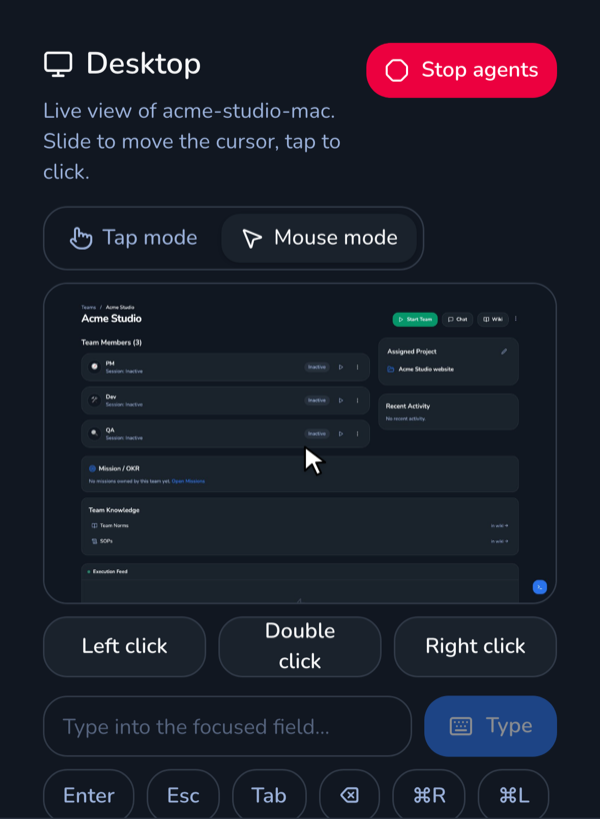 Phone screenshot of the Crewly Cloud Desktop page in Mouse mode, with a live Mac screen, click buttons, a text box and a Stop agents button.
The Desktop page on a phone: a live picture of your Mac, Tap or Mouse mode, typing into the focused field, and Stop agents.
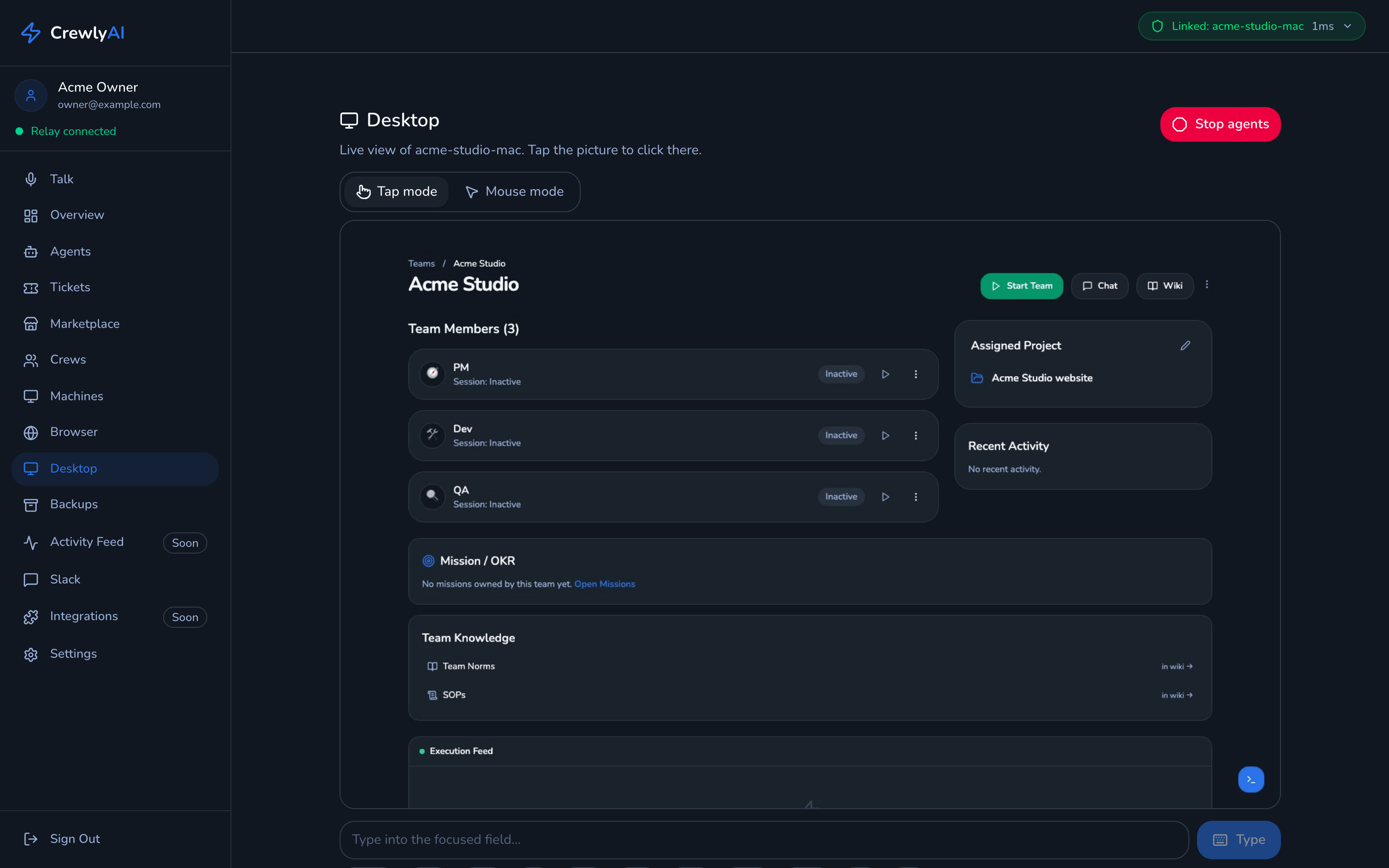 Laptop screenshot of the Crewly Cloud Desktop page in Tap mode, with a live picture of a demo Mac showing a Crewly team page, a text box to type into the focused field, and a Stop agents button.
The same page on a laptop. Real UI with demo data: the team, machine and account are fictional.
Your remote clicks go through the same safety rails as an agent's (below). You can't type into a password field remotely either, and a locked screen can't be seen or driven. The portal tells you to unlock it at the machine.
What happens when an agent gets stuck on a login or a 2FA code?
It asks you. An agent that hits a CAPTCHA, a two-factor code, a sign-in or a decision that's yours to make is instructed to pause itself and request a human. It says what it's stuck on and saves a screenshot you can open on your phone. Then it waits for you instead of trying to be clever. For a login, "clever" means typing a password it should never type.
What safety rails does Crewly's computer use have?
The rails below are enforced in one place, for every agent and every runtime:
- No typing into password fields. Typing is refused when a secure text field has focus.
- Credential apps are never driven.
- Destructive shortcuts are refused outright, including Quit (⌘Q), Close window (⌘W) and delete shortcuts. They're blocked rather than sent for approval, because they're almost never what automation wants.
- One agent at a time. A machine-wide lock keeps two agents from fighting over one mouse, and it expires, so a crashed agent can't freeze the desktop.
- Agents can't disarm the rails. An agent can't turn the rails off or clear a Stop from its own command line.
- Every action is logged to a file on your Mac before it runs, with a before-and-after thumbnail for anything that changes the screen, so you can review what happened, including actions that failed partway.
- Permission problems are reported plainly. Without macOS Screen Recording and Accessibility permissions, the agent is told what to grant and to which app, instead of retrying against a black screenshot.
How do I set it up?
- Run Crewly on your Mac. See Getting started with Crewly or the download page. The code is on GitHub.
- Grant macOS permissions. Computer use needs Screen Recording and Accessibility. The first check tells you exactly which app to grant them to.
- Give an agent a desktop task, from Slack or the dashboard. For example: "Open the exported report in Numbers and save it as a PDF to Desktop."
- Optional: to watch and drive the Mac from your phone, run
crewly desktop remote onon that Mac, then open Desktop in the Crewly Cloud portal.
What it doesn't do
- macOS only, for now. There's no Windows or Linux support today. On other platforms, computer use says it's unsupported rather than failing in a confusing way.
- Agents run with full permissions. Beyond the desktop rails above, that's what lets them work unattended, so run Crewly in an environment you're comfortable with.
- Not while the screen is locked. A locked Mac can't be seen or driven, by an agent or by you remotely.
- It's the slowest, most fragile surface. Pixels and coordinates break more easily than a connector or a browser tab. Crewly uses computer use only when nothing else can do the job, and you should expect it to be slower.
- Remote desktop is opt-in per machine. If you didn't run
crewly desktop remote onat the Mac, the portal can still stop its agents, but it can't show or drive the screen. - One agent drives at a time. Other agents that need the desktop wait for the lock.
- The rails are a floor, not a guarantee. They catch passwords, credential apps and destructive shortcuts. They don't make every click safe. Watch sensitive work, and use Pause freely.
FAQ
Is Crewly's computer use open source?
Yes. Computer use is part of Crewly Community Edition, which is open source (MIT), and the code, including the safety rails, is on GitHub.
Can an AI agent control my Mac or PC?
On a Mac, yes: Crewly agents can operate the mouse and keyboard, with the rails above. Windows and Linux aren't supported today; computer use is macOS-only.
Is computer use safe? What stops it from deleting things?
Destructive shortcuts such as Quit, Close window and delete are refused outright, password fields and credential apps are off-limits, and every action is logged before it runs. You can pause it by touching the mouse or stop everything with ⌃⌥⌘. The rails are a floor, not a guarantee, so watch sensitive work.
Can the agent type my passwords?
No. Typing into a secure password field is refused, credential apps are never driven, and an agent stuck on a login is instructed to pause and ask you.
How do I stop an agent immediately?
Press ⌃⌥⌘. (Control-Option-Command-period) anywhere, click Stop on the banner, or tap Stop agents on the portal's Desktop page. Simply moving your mouse pauses it.
Can I control my Mac from my phone?
Yes, once you turn on remote desktop at the Mac with crewly desktop remote on. It's off by default and can only be enabled at the machine.
Can Claude Code use computer use through Crewly?
Yes. Claude Code and Codex agents in Crewly get the same computer use, with the same rails.
Does it run on my real desktop or in a VM?
On your real Mac desktop, the one Crewly runs on. That is why the rails, the banner and the pause-on-touch exist.
Which macOS permissions does it need?
Screen Recording and Accessibility. If they are missing, Crewly tells you which app to grant them to.
Computer use or a browser agent: which do I need?
For web pages, a browser agent: Crewly in Chrome is faster and breaks less often. Computer use is for native apps and system dialogs the browser can't reach.
Will two agents fight over my mouse?
No. A machine-wide lock gives the desktop to one agent at a time, and it expires if an agent crashes.