
Yes. Crewly runs Claude Code as an agent on your machine, and the free Crewly in Chrome extension lets it work in your real Chrome, on the sites you're already signed in to. You watch a live picture of that browser from Crewly Cloud or your phone, and you can take the browser back with one click.
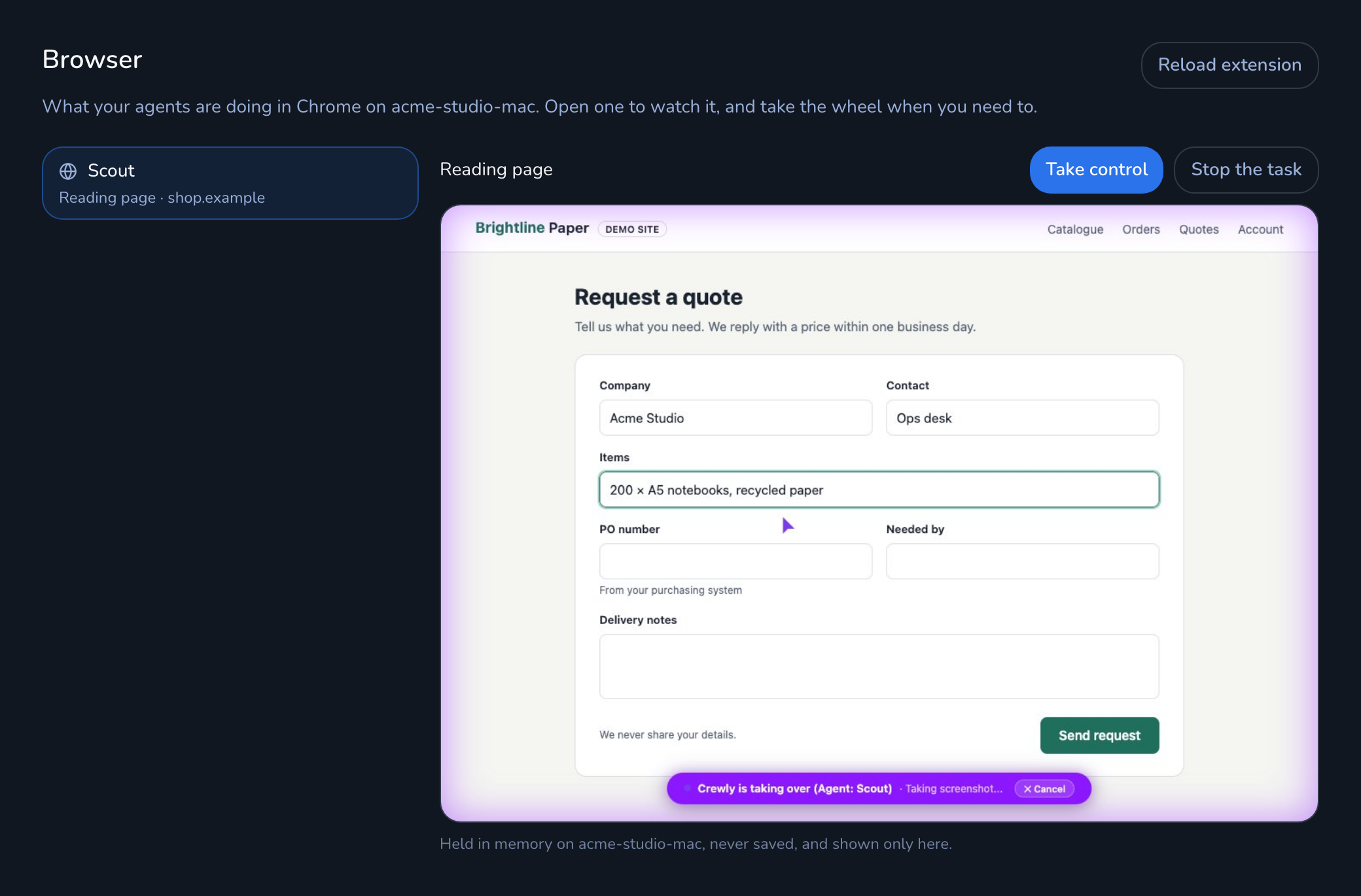 The Browser view in Crewly Cloud: an agent's session in the list, and a live picture of the browser it is using
The Browser view in Crewly Cloud: agent sessions on the left, a live picture of the selected one on the right.
Let Claude Code work in your signed-in Chrome
Ask a Claude Code agent for something in a browser, from Slack or the Crewly dashboard. It can open a page, read it, click, type, fill in a form and take a screenshot.
It is your own Chrome, not a remote or headless browser. So it works as you on your analytics dashboard, your admin console or your CRM. You don't hand over passwords or copy cookies anywhere.
While an agent drives a tab, the page gets a purple glow and a pill at the bottom with the agent's name and what it is doing.
It works in Chrome only. If your computer is asleep or Chrome is closed, there is no browser for the agent to use.
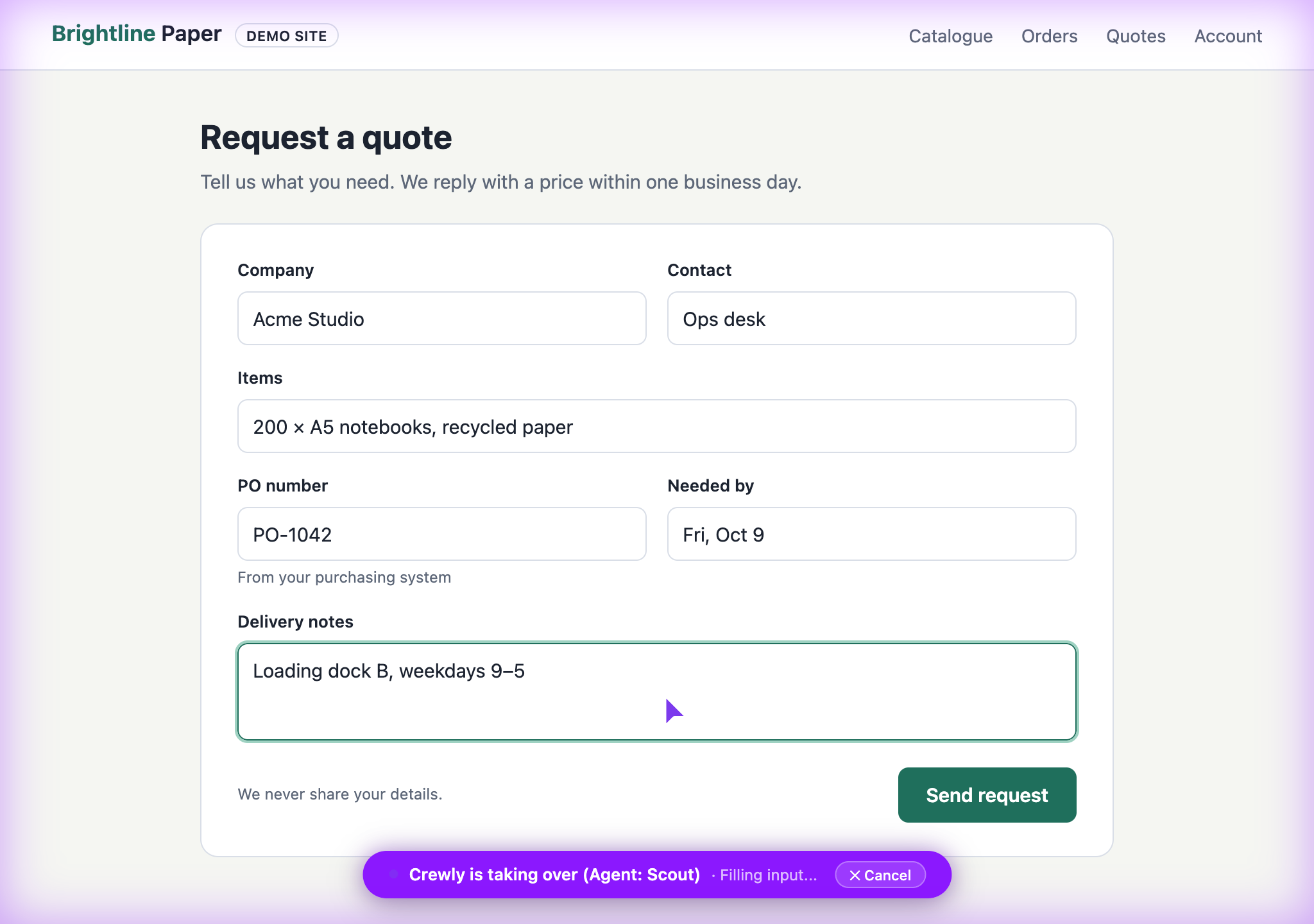 A Chrome tab an agent is driving, with a purple glow and a pill at the bottom showing the agent's name and its current action
A tab an agent is driving: the pill names the agent and its current action.
Watch every session live
Open Browser in Crewly Cloud. Every agent session is listed with its status and the site it is on, for example Reading page · example.com.
Select a session to see the agent's last action and a live picture of the browser. It refreshes every couple of seconds while you look.
The same view works in a phone browser, where you can watch, take control or stop the task. An agent can also post its session link in your Slack thread, so you open it with one tap. Only the link goes to Slack, never the picture.
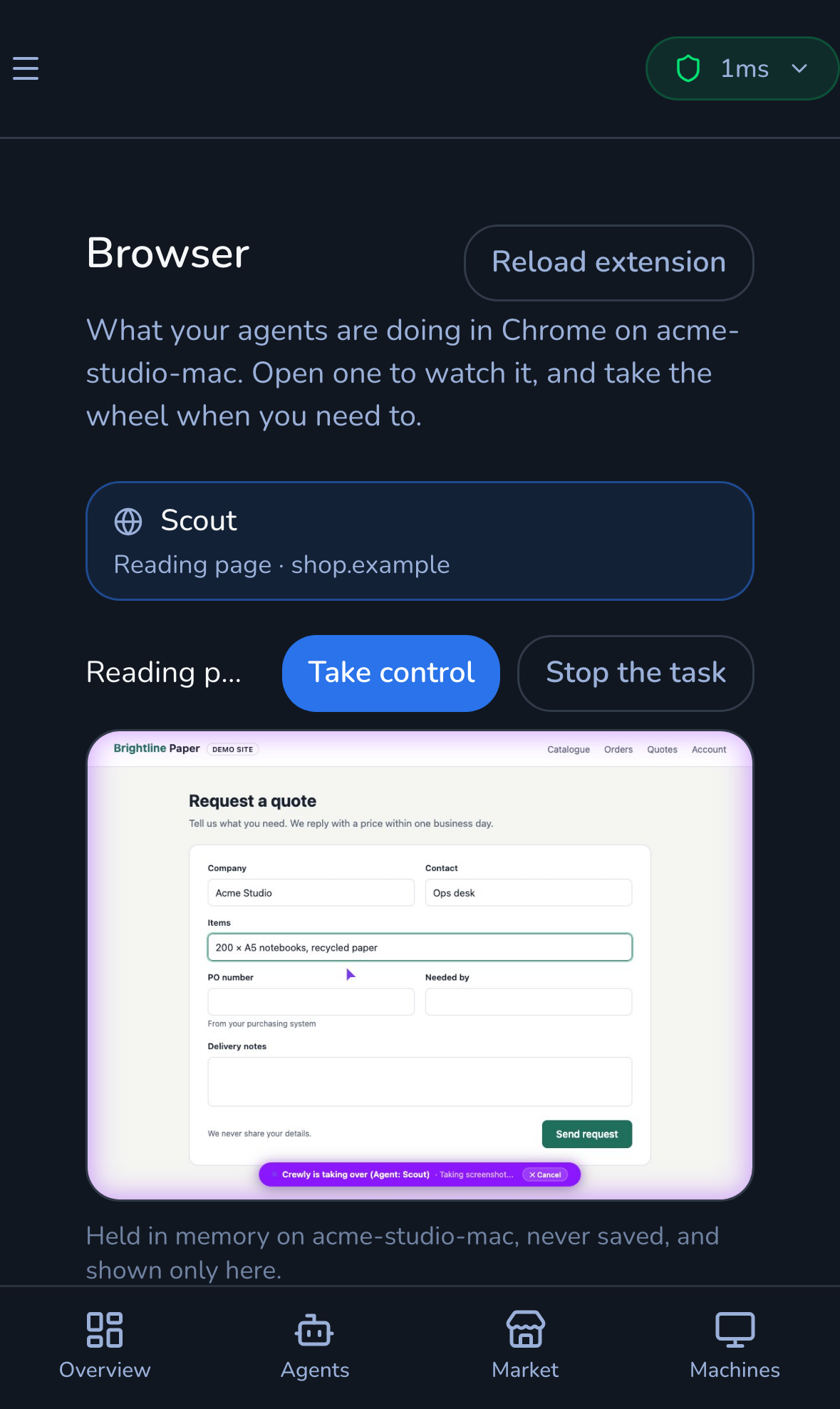 The Browser view on a phone, with the live picture and the Take control and Stop the task buttons
On a phone: the same live view, with Take control and Stop the task.
Take over with one click
Click Take control. The status changes to Waiting for you, and the agent is refused every browser action, including reading the page, until you give it back.
That's the moment to type a password or a one-time code in Chrome on your computer. The agent can't see it.
When you're done, click Give control back. The agent is told where the page ended up, not what you did there, and it looks at the page again before it continues. Stop the task ends the session.
Taking over mid-task: the agent is locked out until you give the browser back.
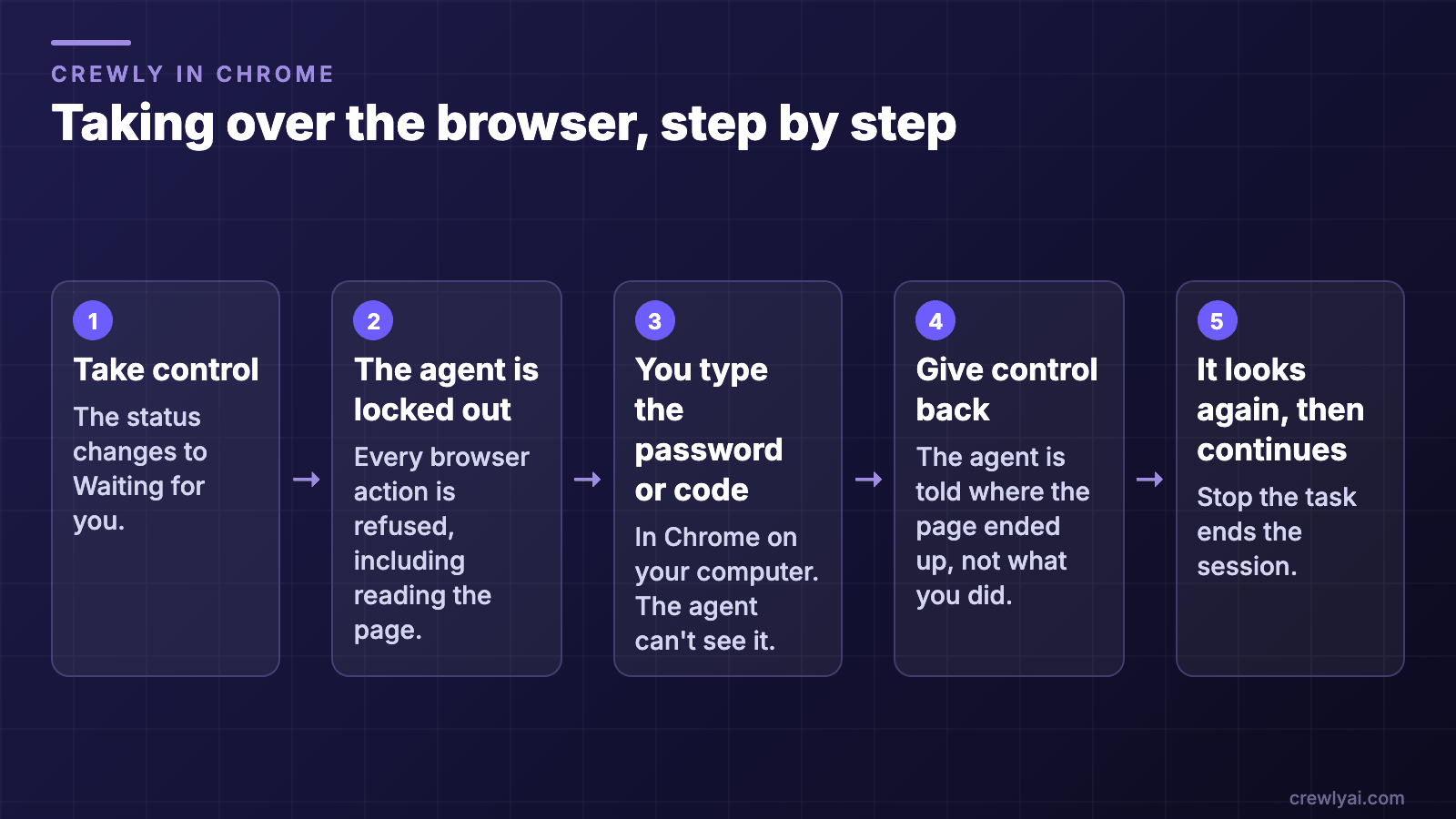 Diagram of taking over the browser in five steps: Take control, the agent is locked out, you type the password or code, Give control back, and the agent looks at the page again before it continues.
The same take-over, step by step (diagram).
Risky clicks wait for your OK
Three rules keep you in charge:
- Irreversible-looking actions are held. Clicks that read as send, submit, pay, delete, confirm, publish or sign, and pressing Enter, wait until you click Let it or No. The session shows Waiting on you until you answer. The list is short on purpose, so treat it as a backstop, not a guarantee.
- The picture of your screen stays in the Browser view. It is kept in memory, never saved, and never posted to chat or Slack.
- Agents don't type your credentials. They are instructed never to enter passwords or card numbers. That is what taking control is for.
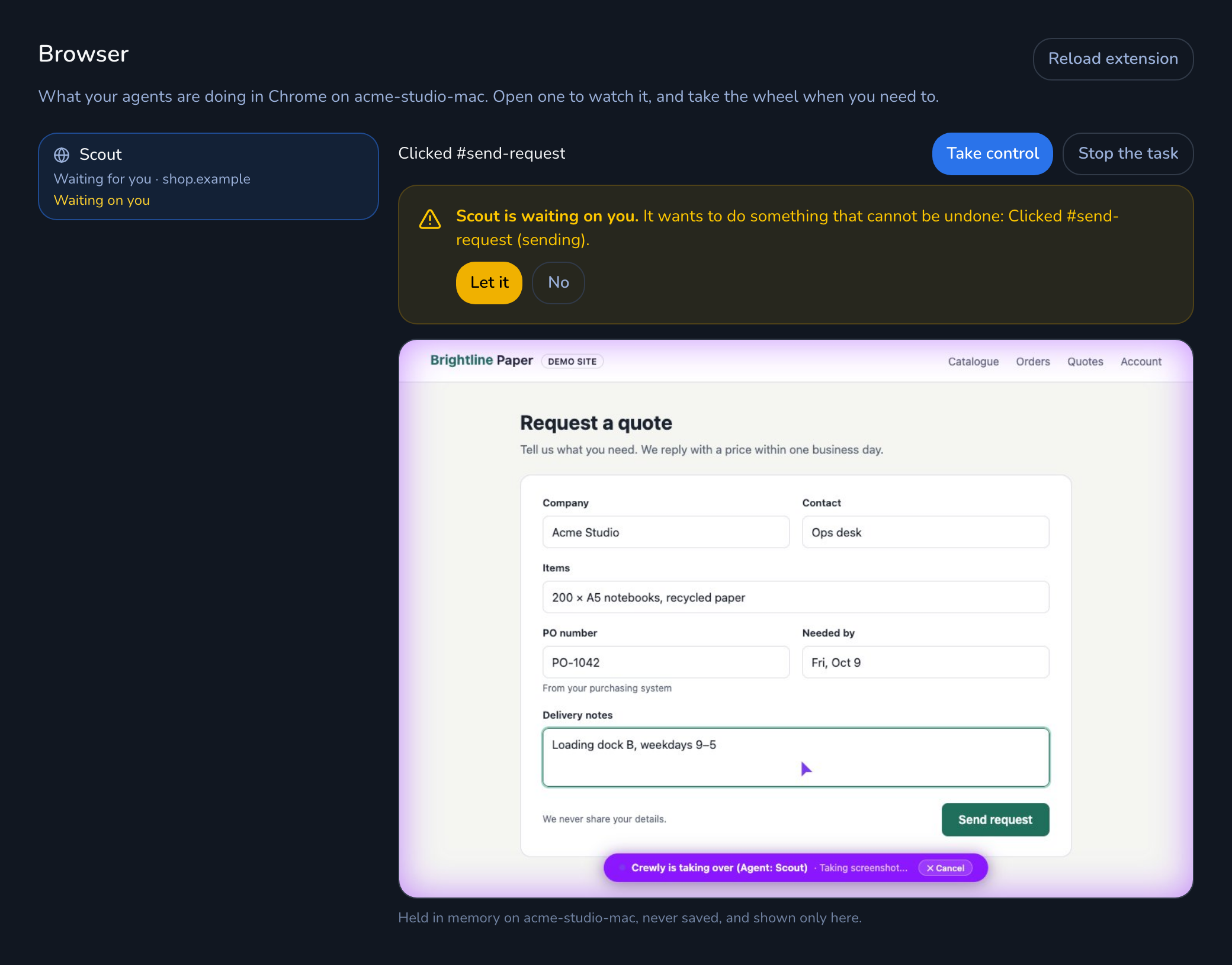 A held action in the Browser view: the agent is waiting on you, with Let it and No buttons
A held action: the agent wants to click a Send button and waits for Let it or No.
Anthropic's own Claude in Chrome extension also connects Claude Code to your browser: you start it with claude --chrome, it needs a Pro, Max, Team or Enterprise plan, and Claude pauses at logins and CAPTCHAs for you to handle them (Anthropic docs, checked 2026-09-25). Crewly in Chrome is built for agents that keep working while you're away. You watch from Crewly Cloud or your phone, take the browser at any moment, and see every agent's session in one list, whether it runs Claude Code or Codex.
Get started
-
Run Crewly on your machine. See the download page.
-
Add the extension, then sign in from it with your Crewly Cloud account:
-
Open Browser at crewlyai.com/portal/browser, then ask a Claude Code agent to do something in a browser.
FAQ
Is it free?
The extension is free, and so are watching sessions and taking control, for Crewly Community Edition users. The extension itself isn't open source, but Crewly's core platform is (MIT, on GitHub).
Is it safe to let Claude Code use my logged-in browser?
It works as you, so take control before you type anything sensitive, and watch sensitive work.
Does it work with Codex?
Yes. Any Crewly agent can use your Chrome through the extension, whether it runs Claude Code or Codex.
Why does it need so many permissions?
To act in any tab you point an agent at, it needs to read and interact with pages on any site, capture the visible tab, and keep you signed in to Crewly. It only acts on a page when a Crewly agent is carrying out a browser task, and the live picture is never saved (see our privacy policy).