
You can move a whole running agent team to another of your computers from the Machines page of your Crewly portal: open the team, press Move to…, pick the machine and press Move team. The members, their schedules and memory, open tasks, project notes and conversations come along, encrypted end to end. Typical reasons: a new computer, or an always-on Mac mini. Both machines must be signed in to your Crewly Cloud account with Crewly running.
Before you start
- Both machines are signed in to the same Crewly Cloud account (in the dashboard: Settings → Cloud), with Crewly running and up to date. Crewly 1.20.313 or later also runs the full check before the move. A machine is only offered as a target while it is online and new enough; if it is missing, update Crewly there and make sure it is running.
- Git login and free disk on the new machine. It clones your repositories with its own git login, and the check compares its free disk with the package size.
Move a team
-
Open the Machines page in your portal (crewlyai.com/portal/machines). Under Teams on your machines, find the team.
-
Press Move to… next to it. It is greyed out, with the reason under it, if the machine is offline or needs an update.
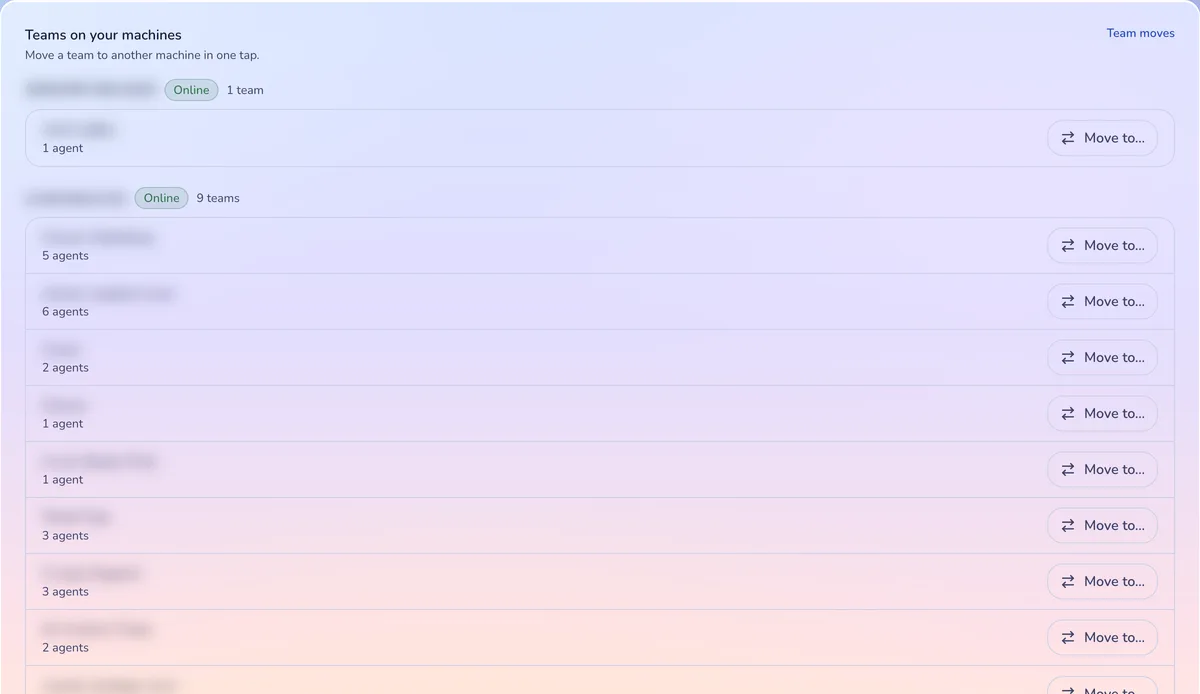 The Machines page in the Crewly portal: under Teams on your machines, each team has a Move to… button
-
In the window titled Move plus your team's name, pick the target under Move it to.
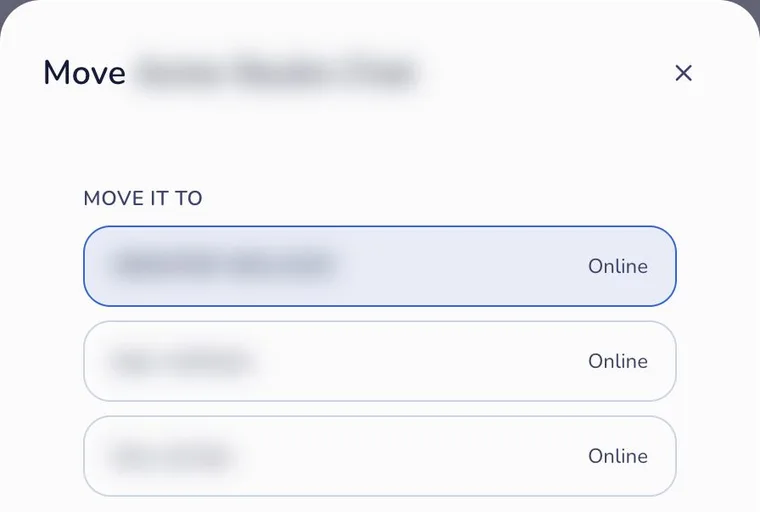 The Move window with the Move it to list of target machines
-
Read Before we move. Crewly asks both machines to check themselves: disk space, missing tools, AI CLIs not logged in, and the state of each repository. Fix anything marked as blocking; Move team stays disabled until nothing blocks. Any file holding a password or token can be left behind, and a key in a conversation is masked in the copy that travels.
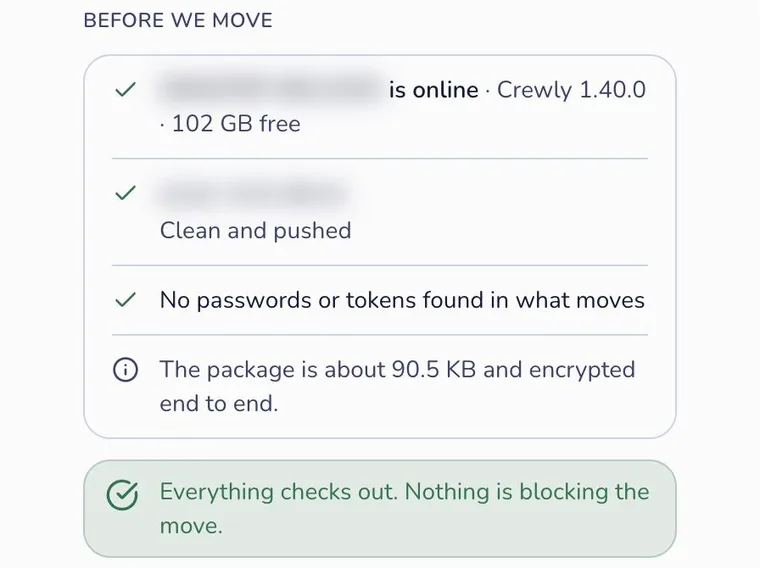 The Before we move check: target online, repository clean and pushed, no passwords or tokens, package size, and "Everything checks out. Nothing is blocking the move."
-
Press Move team. You land on Team moves, which shows each step, from packing the team to "Slack switched to the new machine" and "Done, old copy archived".
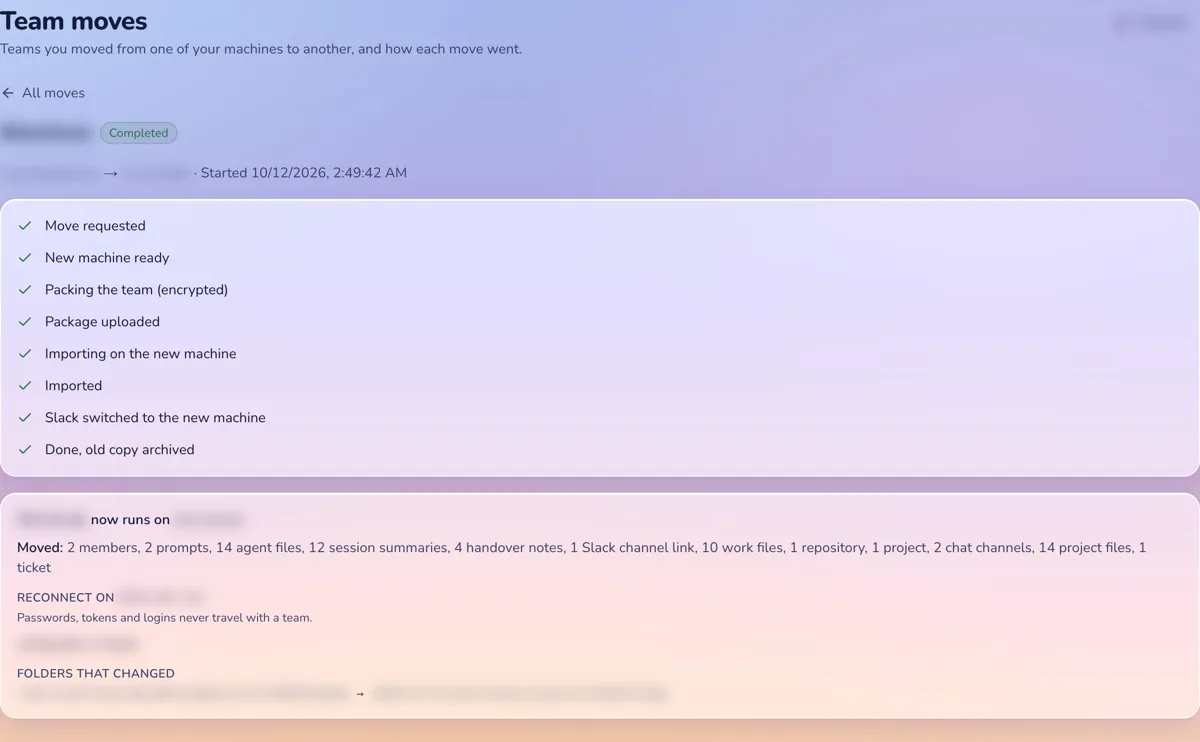 The Team moves page for a finished move: every step ticked, down to "Done, old copy archived", then what moved and what to reconnect
When it finishes, the summary lists what to reconnect on the new machine (passwords, tokens and logins) and any tools it is missing. If the check said an AI CLI is not logged in there, log in to it; until then the agents use another runtime.
What moves and what does not
Moves with the team: members, schedules, norms and goals, wiki and memory, open tickets and tasks, and the team's project notes. Each member's latest Claude Code conversation is resumed on the new machine, and the team's chat channel moves with its recent messages. The apps the team publishes keep being published by its agents from the new machine.
Does not move: passwords, tokens and logins, and code repositories as such. The new machine clones each repository at the recorded branch and commit. Three cases are handled for you: uncommitted changes can be carried in the package, a repository with no remote travels as a bundle, and a project folder that is not a git repository travels with its working files (build folders such as node_modules are left out). Size caps apply.
Good to know
- The orchestrator is not in the list; teams are what you move.
- A move between a Mac and a Windows machine is not something we have tested, and Windows support is still early. See how to install Crewly on Windows.
FAQ
Can I undo a team move?
Yes, for 7 days. Open Team moves and press Roll back: Slack goes back to the old machine and the new one archives its copy. Work done on the new machine since the move is not copied back.
Do my passwords and API keys move with the team?
No. Passwords, tokens and logins never travel; you reconnect them on the new machine. A key inside a member's conversation is masked in the copy that travels; the original stays untouched.
What if my code has uncommitted changes or no remote?
The check offers fixes: ask the team to commit and push, carry the changes in the encrypted package, or leave them behind. A repository with no remote travels in the package.